
Friday I spent some time cleaning up my prospect list. It is tedious no matter what system you use, but it’s necessary. The less I do it, the more opportunities go by the wayside. Here’s what I did:
1. I did a filtered search on the Contacts List Panel to find anyone I have in my system that works at a university. How? Like this:
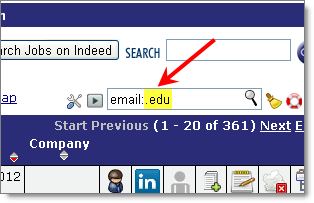
Note: I put the name of a column (“email”), then a colon (“:”), then the value I wanted to filter it on (“.edu”). I chose .edu because email addresses that end in DOT EDU are from schools. There are no spaces between these three elements.
You can see I got 361 records. Many of them are in there because I’ve emailed the people. Because of that, they aren’t yet associated with a “company” record, which would be their school.
NOTE: IF YOU WANT TO SEE MORE FIELDS, CLICK THE MANAGE COLUMNS ICON: 
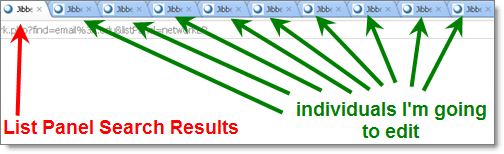
2. When I see a person’s record that I need to edit (in this case I’m doing three things, which I’ll explain later), I OPEN that record in a NEW TAB. Here are the tabs I have open right now:
3. On one of those individual pages I’m going to edit, I have a purpose… NOT to fill out everthing (which is too overwhelming to think about!). I want to put in certain info… which I’ve prioritized below the picture:
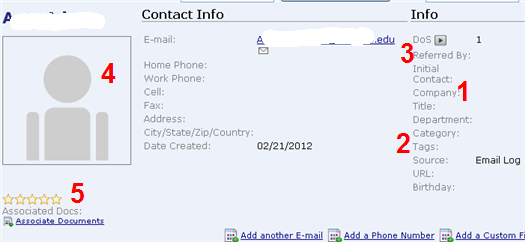
NOTE: I edit all of these fields (usually) by DOUBLE CLICKING on the gray box that pops up when I mouse over them.
FIRST, I want to associate the person to a company… in this case, I have to create the new school name as a company, but I can do it from this page.
SECOND, I tag this person. In this case I put client_schools, but if they are a prospect I’ll tage them as main_prospect. This is critical so I can slice/dice my data later.
THIRD, in this case I’m going to say who introduced me to this person. This person came from someone on my sales team. Later, I can see everyone who they brought to me, because I associated them to that person.
FOURTH, I put the picture. Sometimes I do the google image search, other times I go to LinkedIn (both options are ONE CLICK from this page).
FIFTH, sometimes, if I’m in the mood, I’ll rank the person. Friday I wasn’t in the mood, so I ignored that.
Why do all this?
Once this is done, I can go back to my list panel and say “show me all my contacts who are main_prospects, or who are current_clients…. tagging is critical to getting value out of JibberJobber… are you tagging yet?
Come to the free user webinar on Wednesday morning (more details).